Get A Send & Receive NWC Code from Rizful
 Get A Send & Receive NWC Code from Rizful
Nostr Wallet Connect (NWC) allows external applications to interact with your Rizful vault. A send-and-receive NWC code grants full access to your vault—meaning connected apps can both receive and spend your Bitcoin.
Unlike receive-only NWC codes, a send-and-receive code can spend from your Rizful vault. Only use this with apps and services you fully trust. If this code is compromised, your funds could be at risk.
Best Practices
Before creating a send-and-receive NWC code, keep these tips in mind:
- 🏷️ Give each code a unique, memorable name — This helps you track which apps have access to your vault
- 🗑️ Delete codes you're no longer using — Reduce your attack surface by removing unused connections
- ⏰ Set spending limits and expiration dates — Limit potential damage if a code is compromised
- 🔒 Never share this code publicly — Treat it like a password to your vault
Step 1: Open NWC Settings
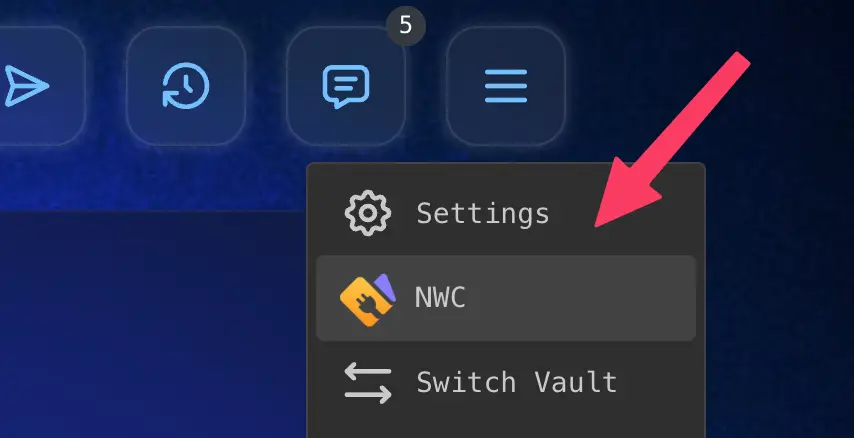
From the main menu in Rizful, tap on NWC to access your Nostr Wallet Connect settings.
Step 2: Get a Code You Can Pay With
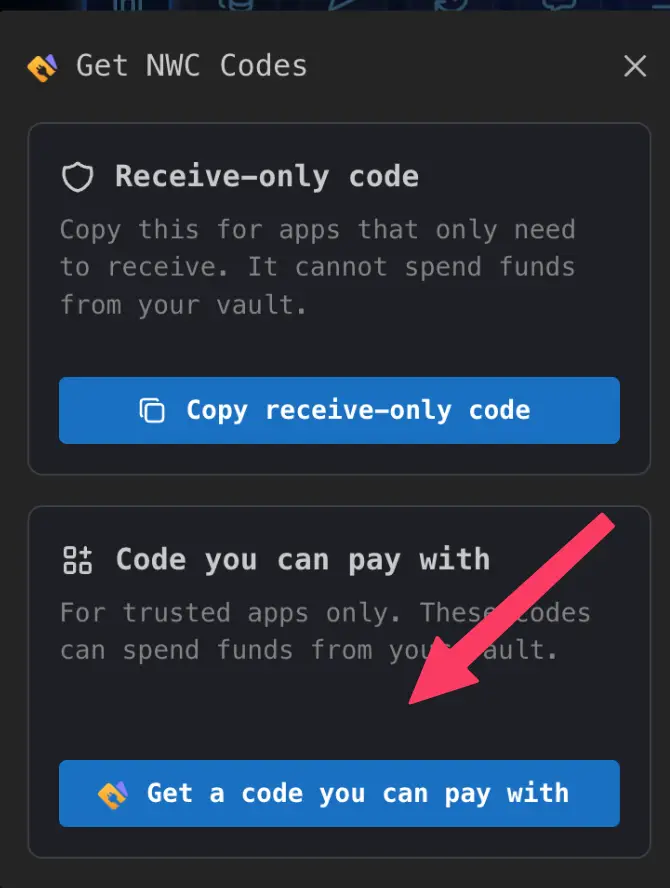
In the Get NWC Codes dialog, tap Get a code you can pay with. (The other button, Copy receive-only code, gives you a receive-only code that cannot spend from your vault.)
Step 3: Create a New Connection
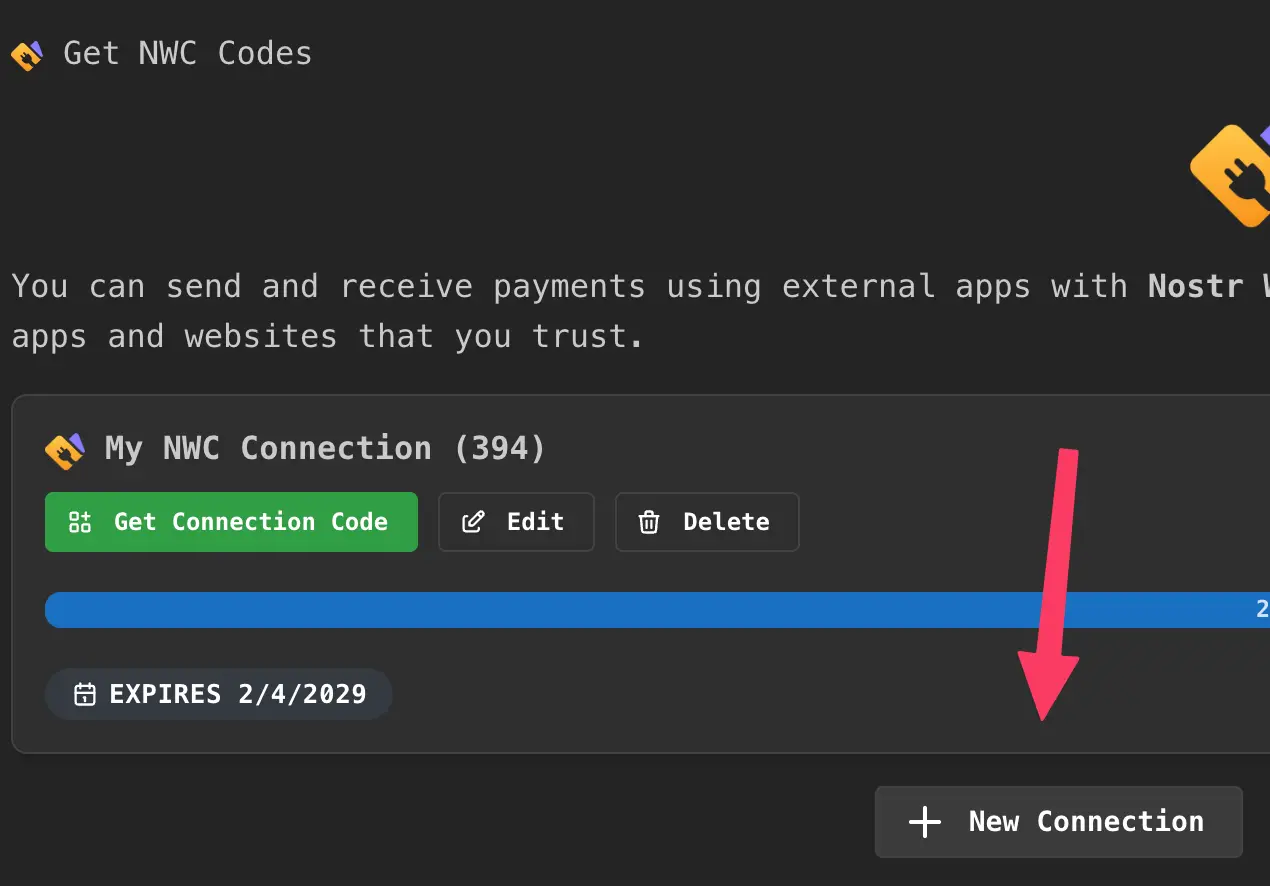
In the Get NWC Codes screen, tap on + New Connection at the bottom right to create a new send-and-receive connection.
Step 4: Edit the Connection
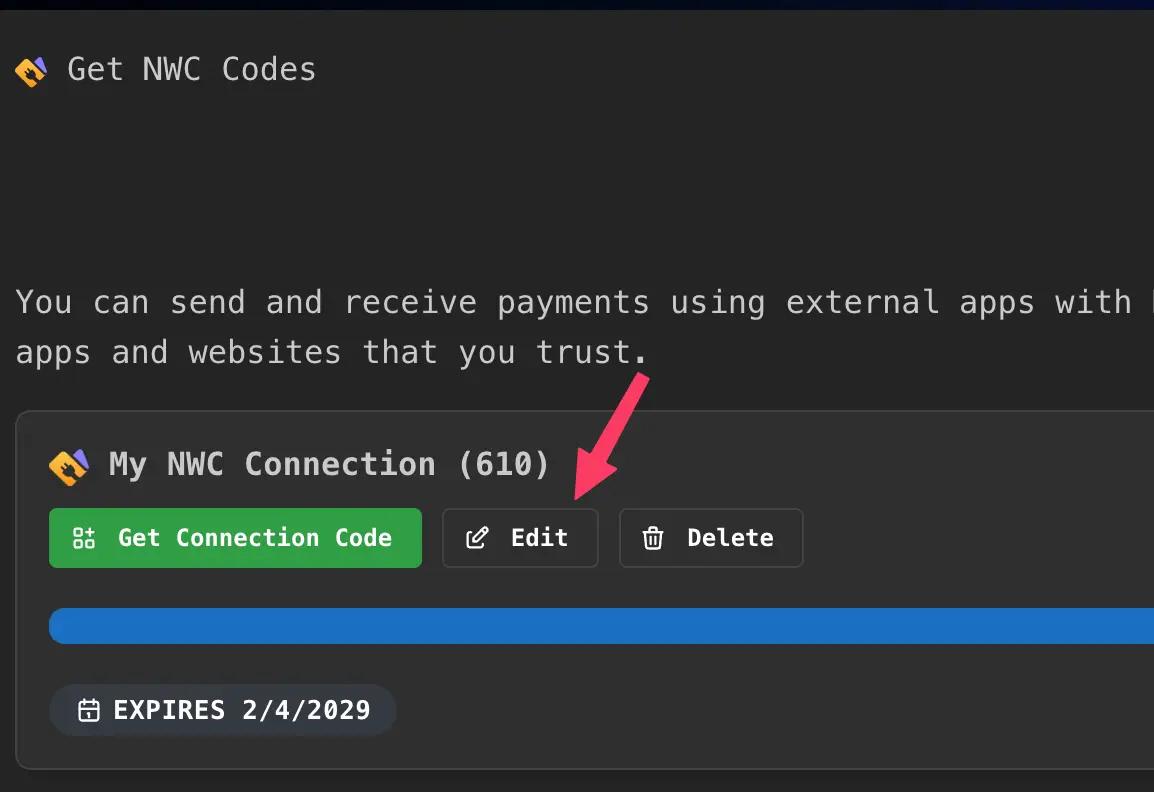
Tap Edit to configure your new NWC connection. (This is optional: a new connection is created with a default name, budget and expiry, and you can skip straight to Get Connection Code if you accept the defaults.)
Step 5: Give It a Memorable Name, a Budget and an Expiry
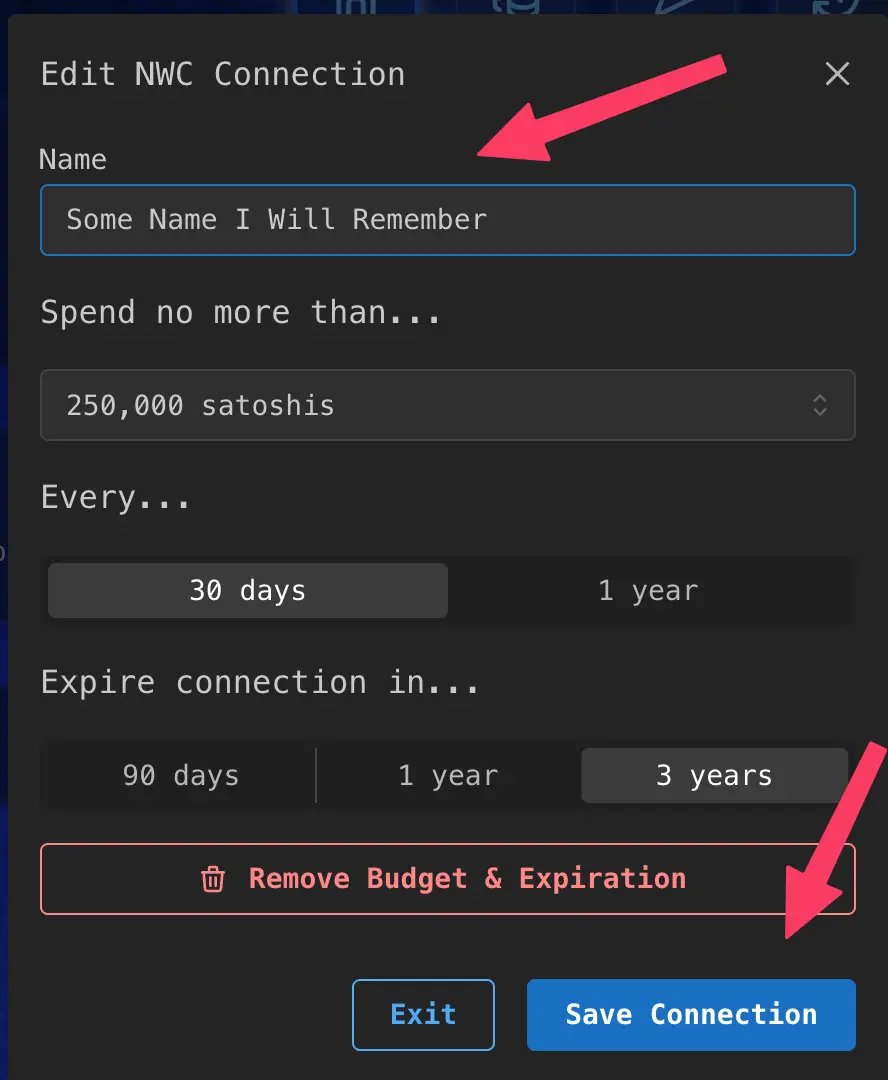
Choose a name that clearly identifies which app or service will use this connection. This makes it easy to manage your connections later.
In the same dialog, set a spending budget (Spend no more than… / Every…) and an expiry (Expire connection in…), then tap Save Connection.
Step 6: Get the Connection Code
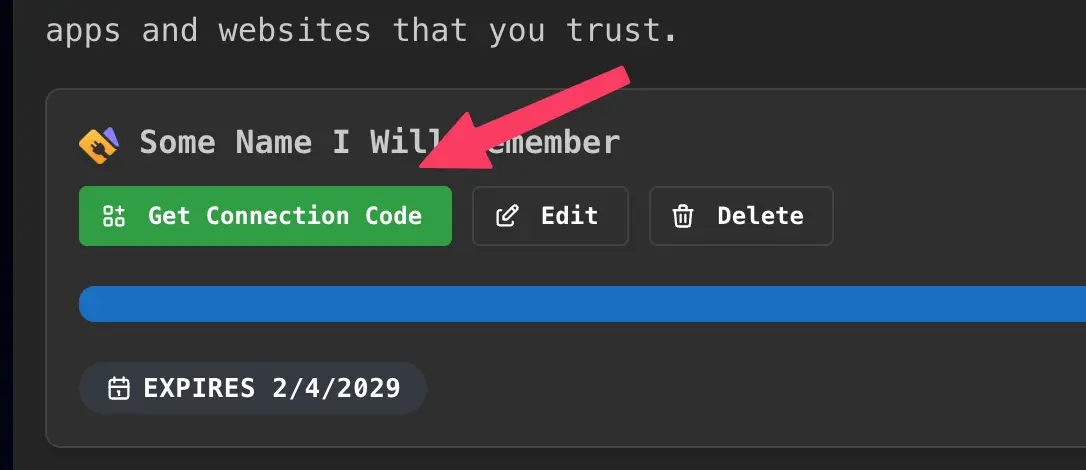
After saving, tap Get Connection Code to view and copy your NWC string.
Step 7: Copy Your Connection Code
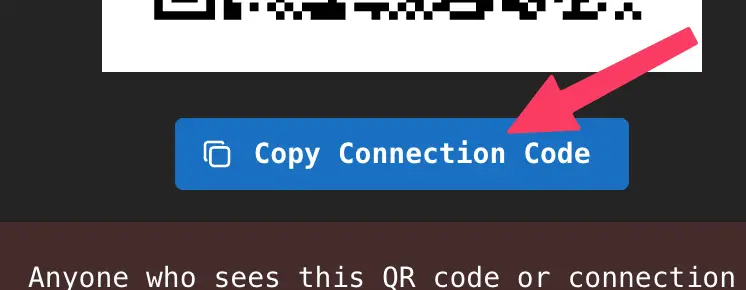
Tap Copy Connection Code to copy the NWC string to your clipboard. You can now paste this into the app that needs wallet access.
Step 8: Delete Codes When You're Done
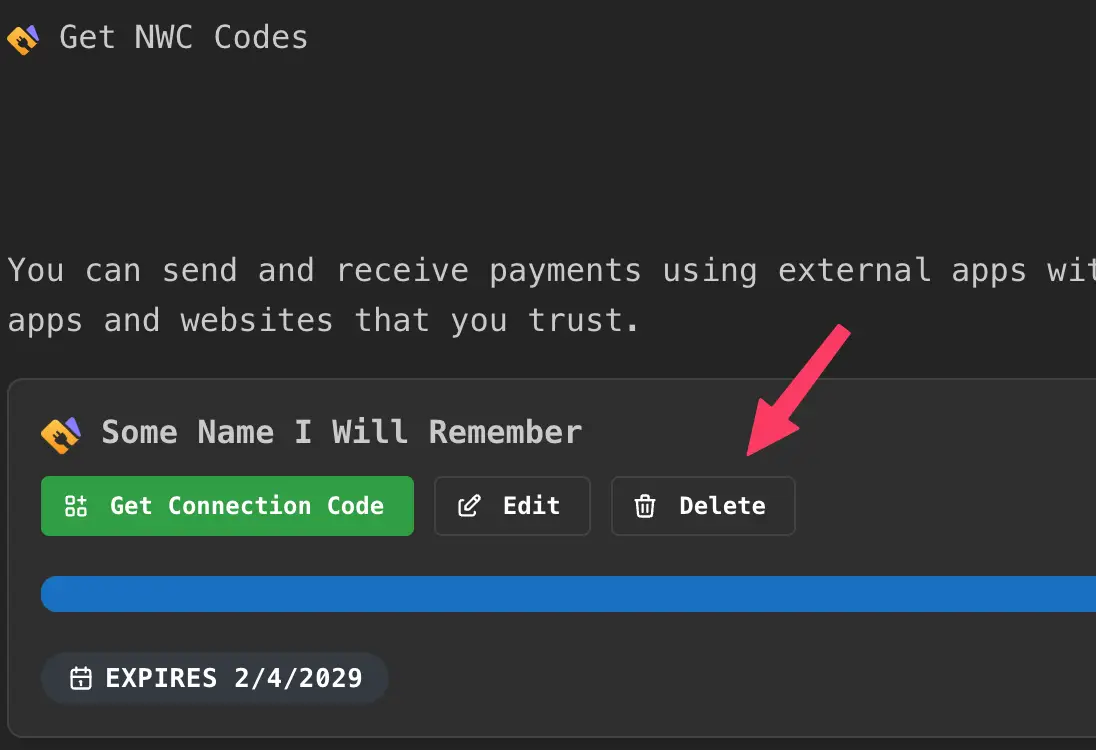
When you stop using an app or service, come back to this screen and Delete the connection. This prevents the old code from being used to access your vault.
What Can You Do With This Code?
A send-and-receive NWC code enables full vault functionality:
- ⚡ Send zaps on Nostr clients like YakiHonne, Jumble, Damus, Primal, or Amethyst
- 💸 Make payments directly from connected apps
- 📥 Receive payments — although if an app only needs to receive, use a receive-only code instead (that is all OpenReceive needs to accept payments on your website)
- 🤖 Automate transactions with trusted services
Security Reminders
| Do ✅ | Don't ❌ |
|---|---|
| Use unique names for each connection | Reuse the same code across multiple apps |
| Set spending limits | Give unlimited access to untrusted apps |
| Delete unused connections | Leave old connections active |
| Only share with apps you trust | Post your NWC code publicly |
Remember: Your NWC code is like a key to your vault. Treat it with the same care you would any other financial credential.